If you've ever opened a wa.me/ link and been greeted with the message "Phone Number Shared Via URL Is Invalid", you're not alone. This error appears frequently on WhatsApp Web and can halt your outreach completely. The good news: it has a reliable fix.
This guide walks you through the root cause of the error and the proven workaround using Google Contacts.
Before You Begin — Quick Checks
In some cases the error is straightforward to resolve. Run through these checks first:
- Confirm the number includes the correct country code (e.g.
+44for UK,+1for US). - Verify the number is actually registered on WhatsApp. The error will still appear for numbers without a WhatsApp account.
- Remove any spaces, dashes, or brackets from the number string.
Portuguese (Brazil): O número de telefone compartilhado através de url é inválido.
Spanish: El número de teléfono compartido a través de la dirección URL es inválido
Indonesian: Nomor telepon yang dibagikan melalui URL tidak valid
Why This Error Happens
WhatsApp restricts direct messaging to numbers that aren't stored in your phone's contact list. When you try to open a chat via a wa.me URL for a number that isn't in your contacts, WhatsApp Web throws this error rather than opening the conversation.
The workaround: upload those numbers to Google Contacts, which syncs to your phone, which in turn makes them available to WhatsApp.
Main Fix — Workaround via Google Contacts
Follow these four steps to permanently get past this error for any list of contacts.
Step 1 — Build Your Contact List as a CSV
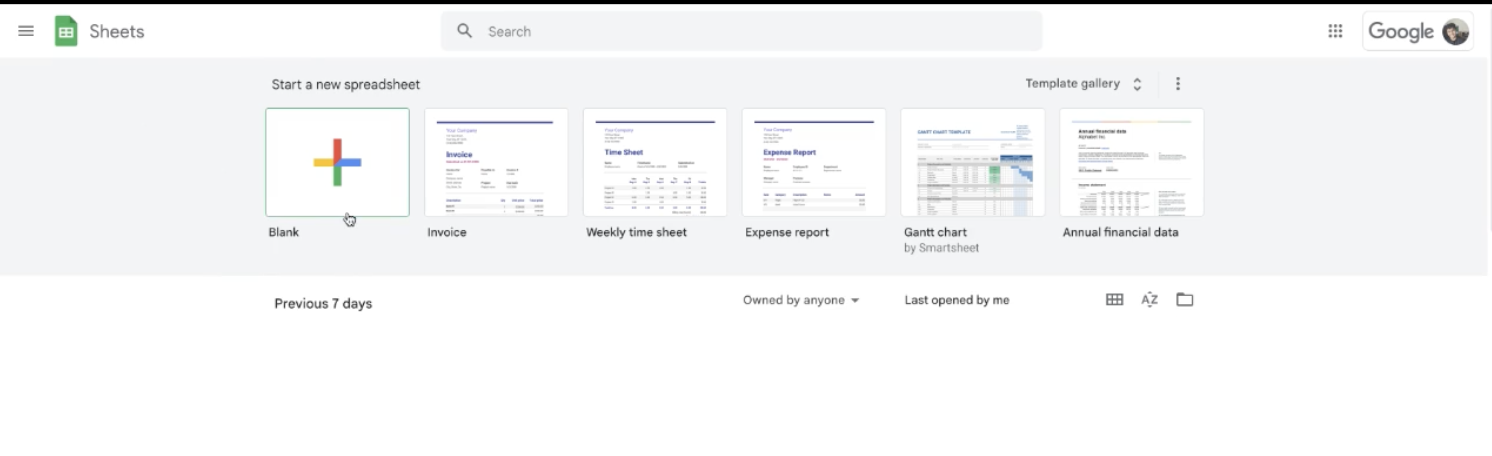
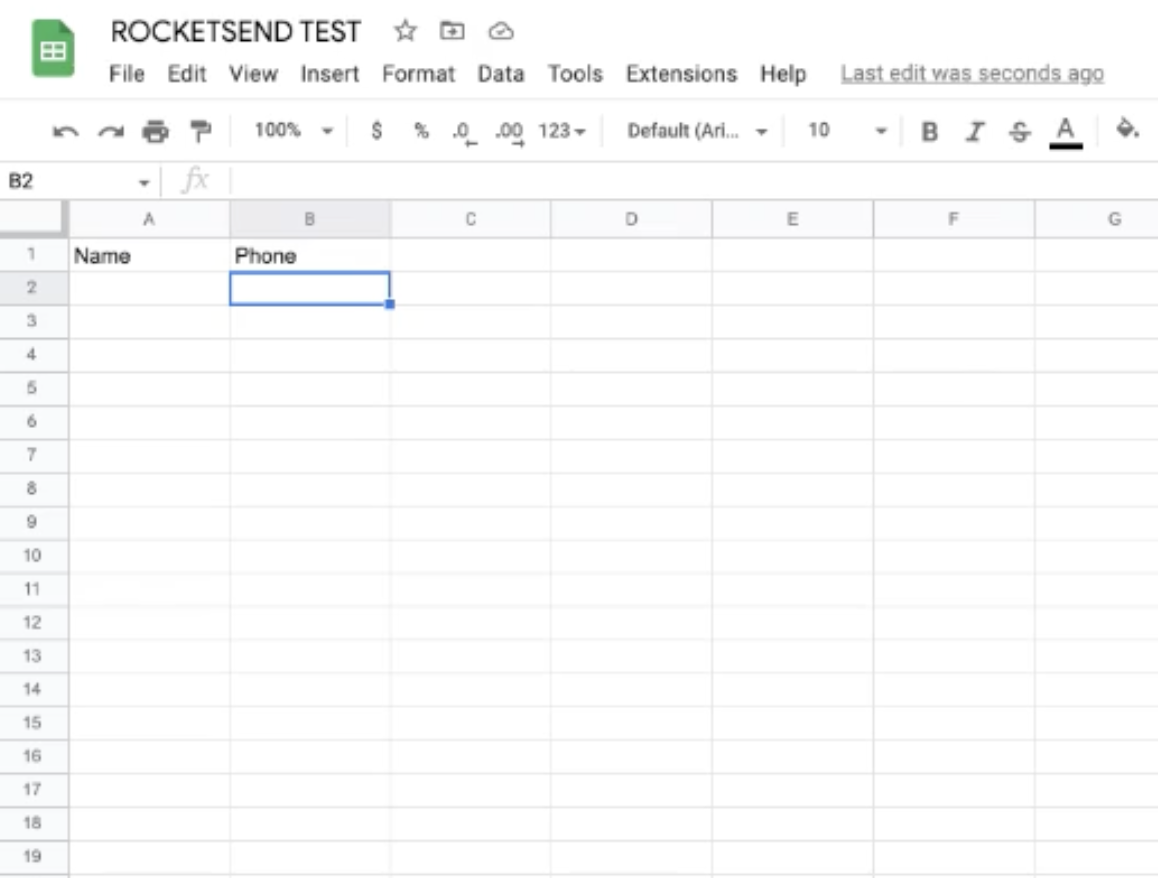
Create a spreadsheet in Google Sheets (or Excel) with exactly two columns: Name and Phone. The column headers must be exactly those words — Google Contacts relies on them for matching.
Enter each contact's phone number with the country code prefixed by a + sign (e.g. +447911123456). If Excel strips the plus sign, add a single quote before it: '+447911123456.

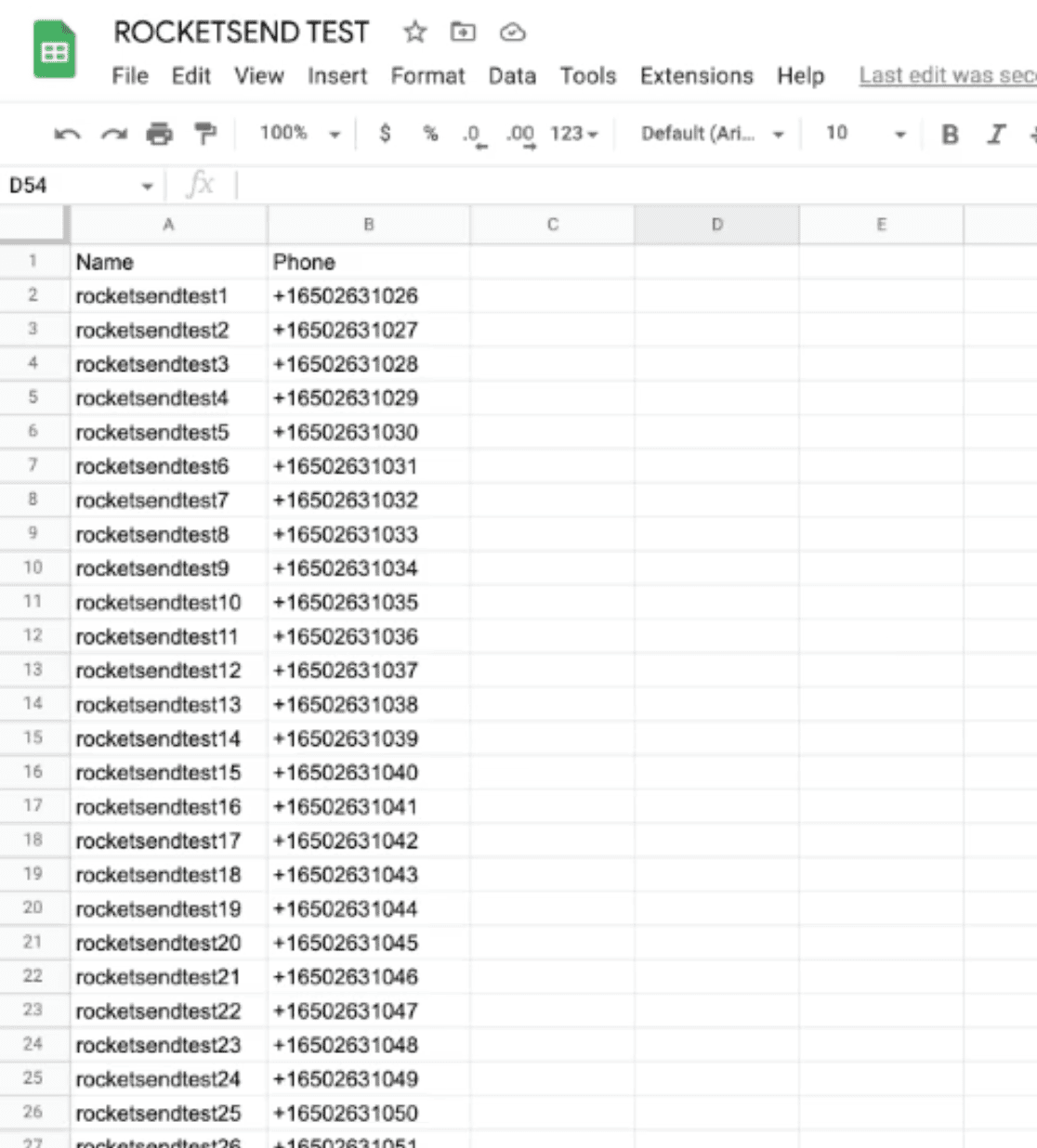
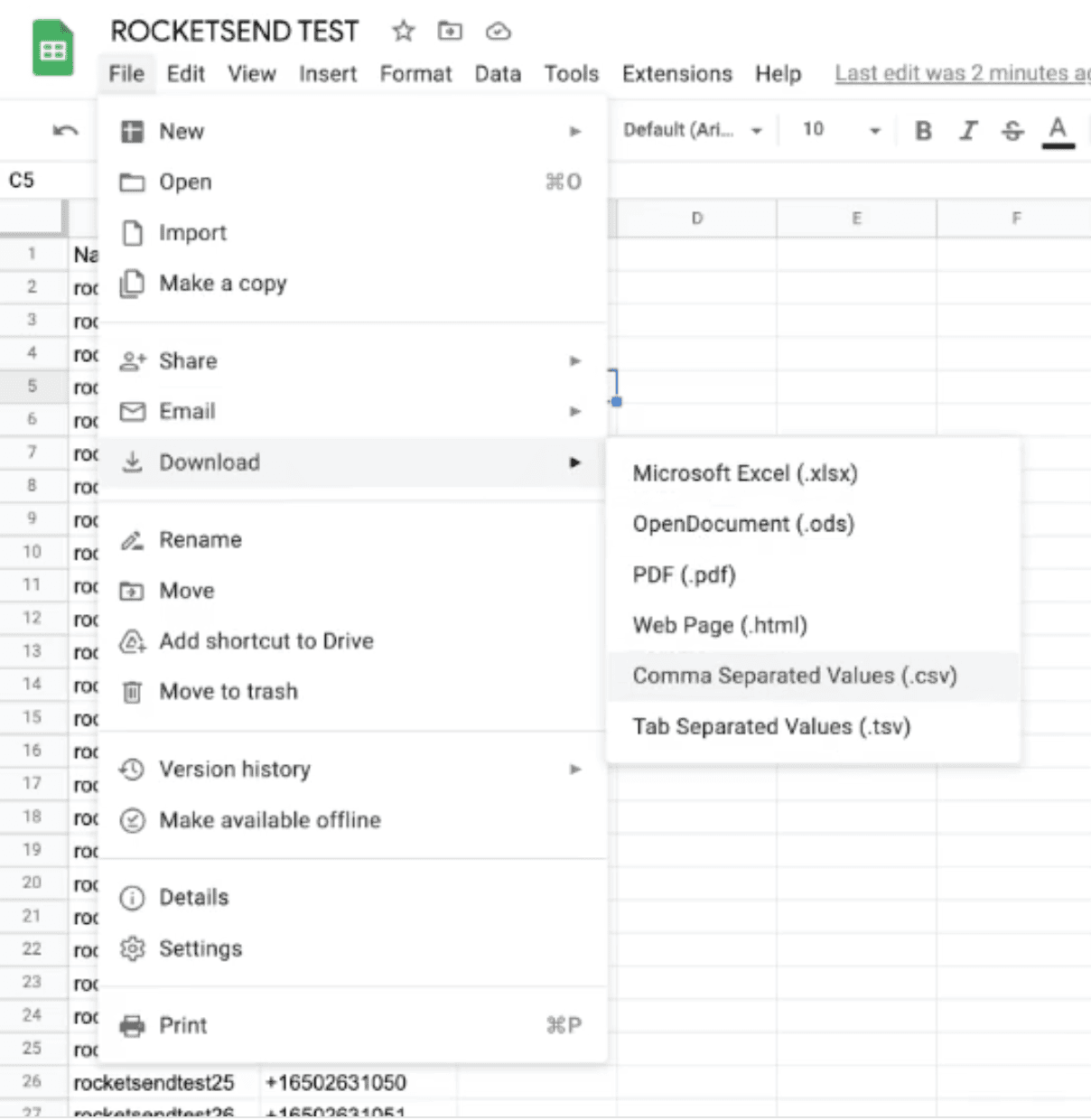
Once your list is complete, go to File → Download → Comma-separated values (.csv) to save the file to your computer.
Step 2 — Import Into Google Contacts
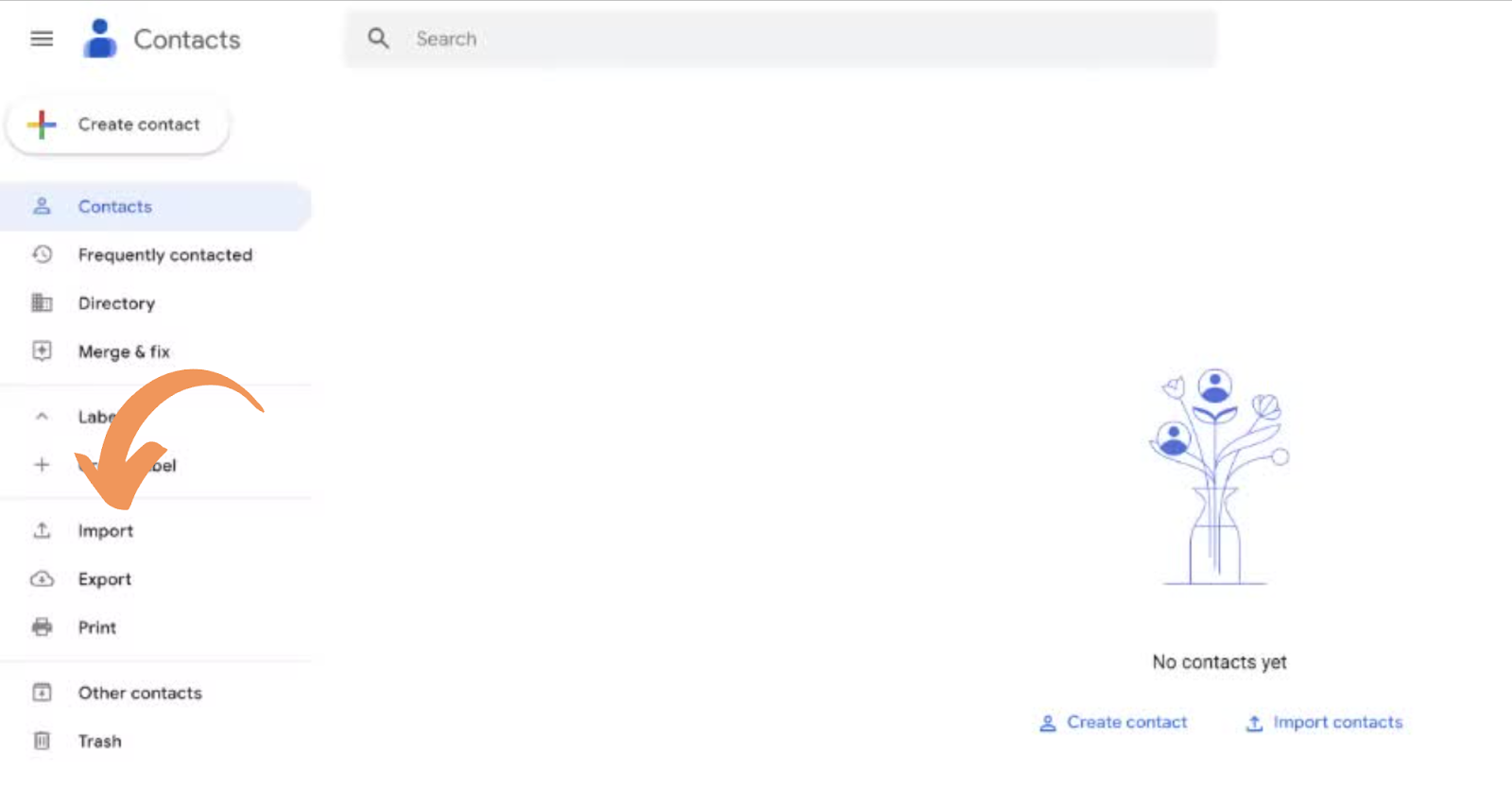
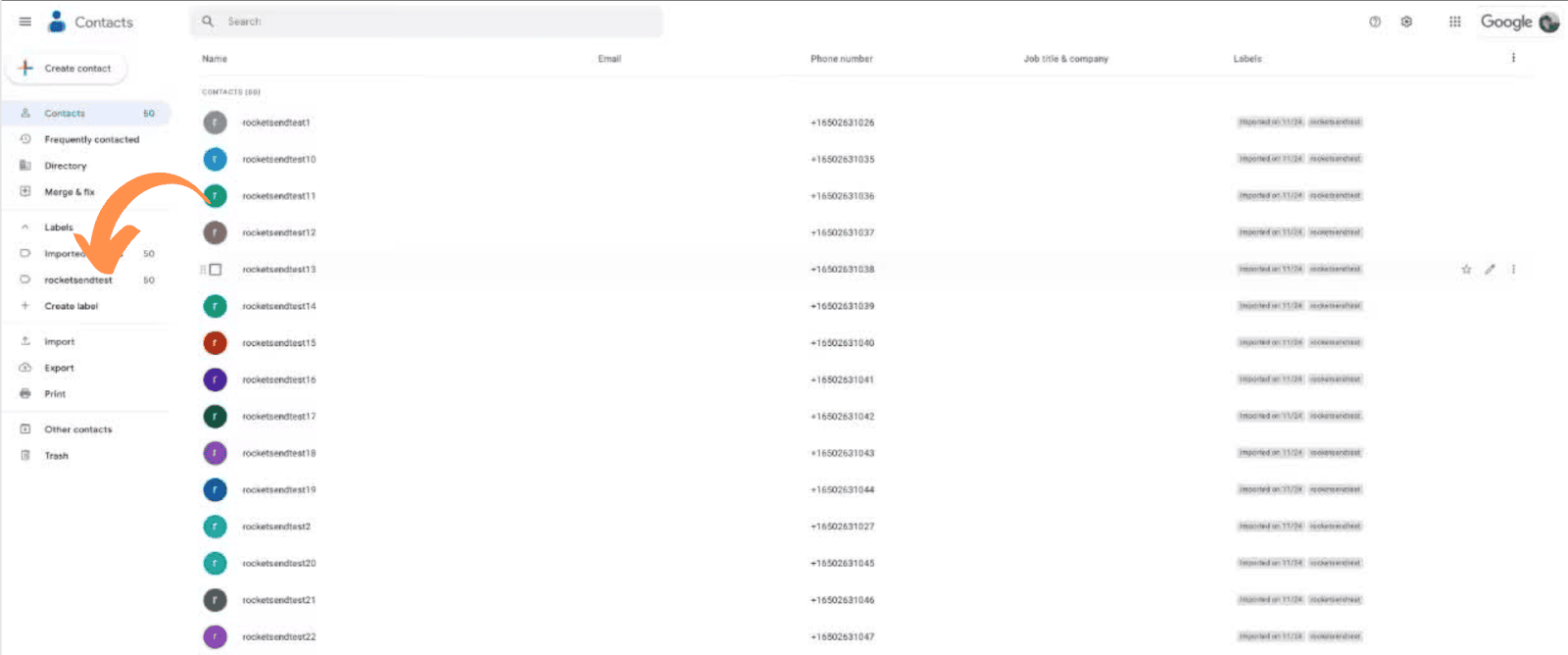
Open contacts.google.com in your browser and click the Import button in the left-hand sidebar.
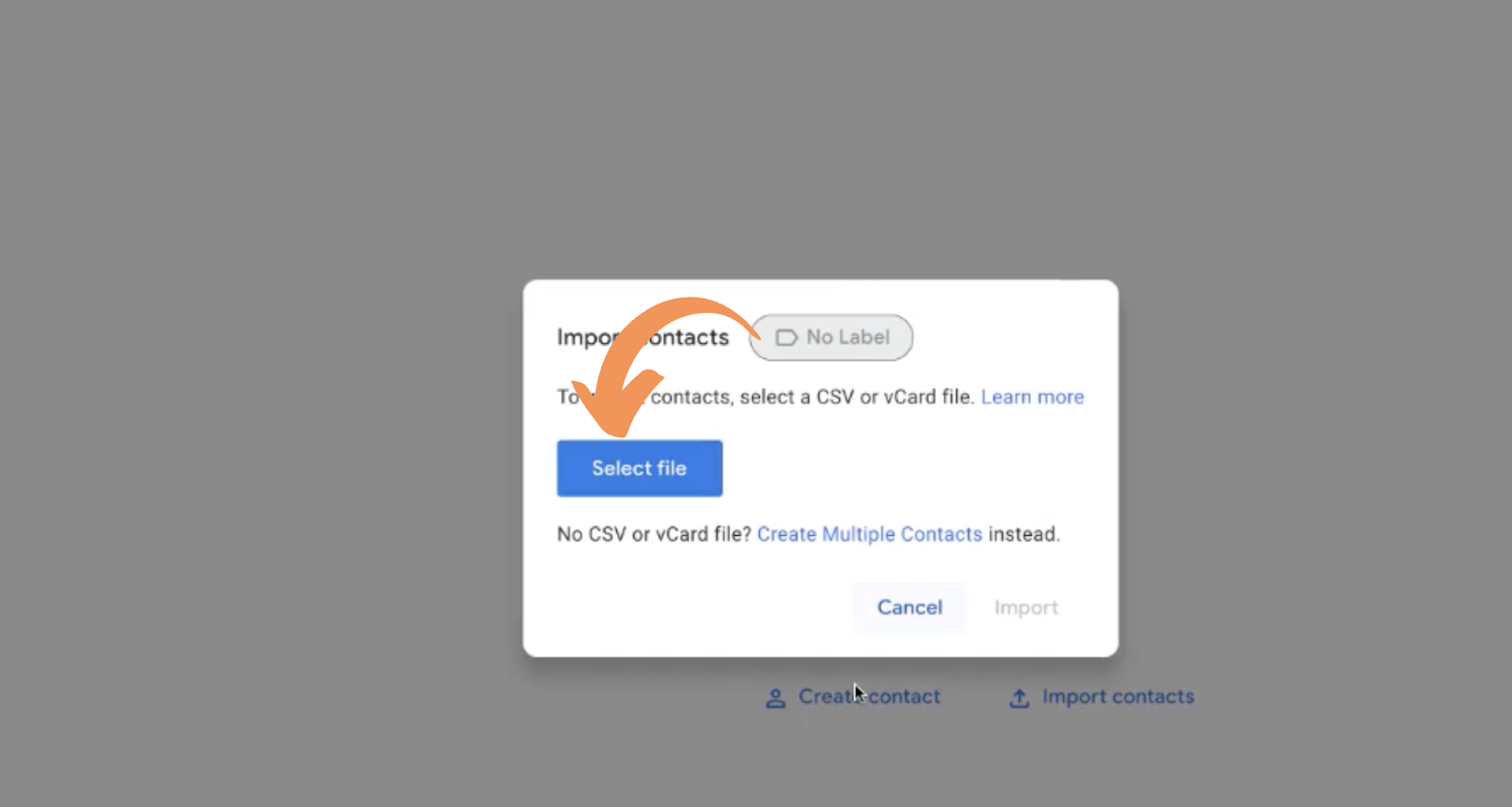
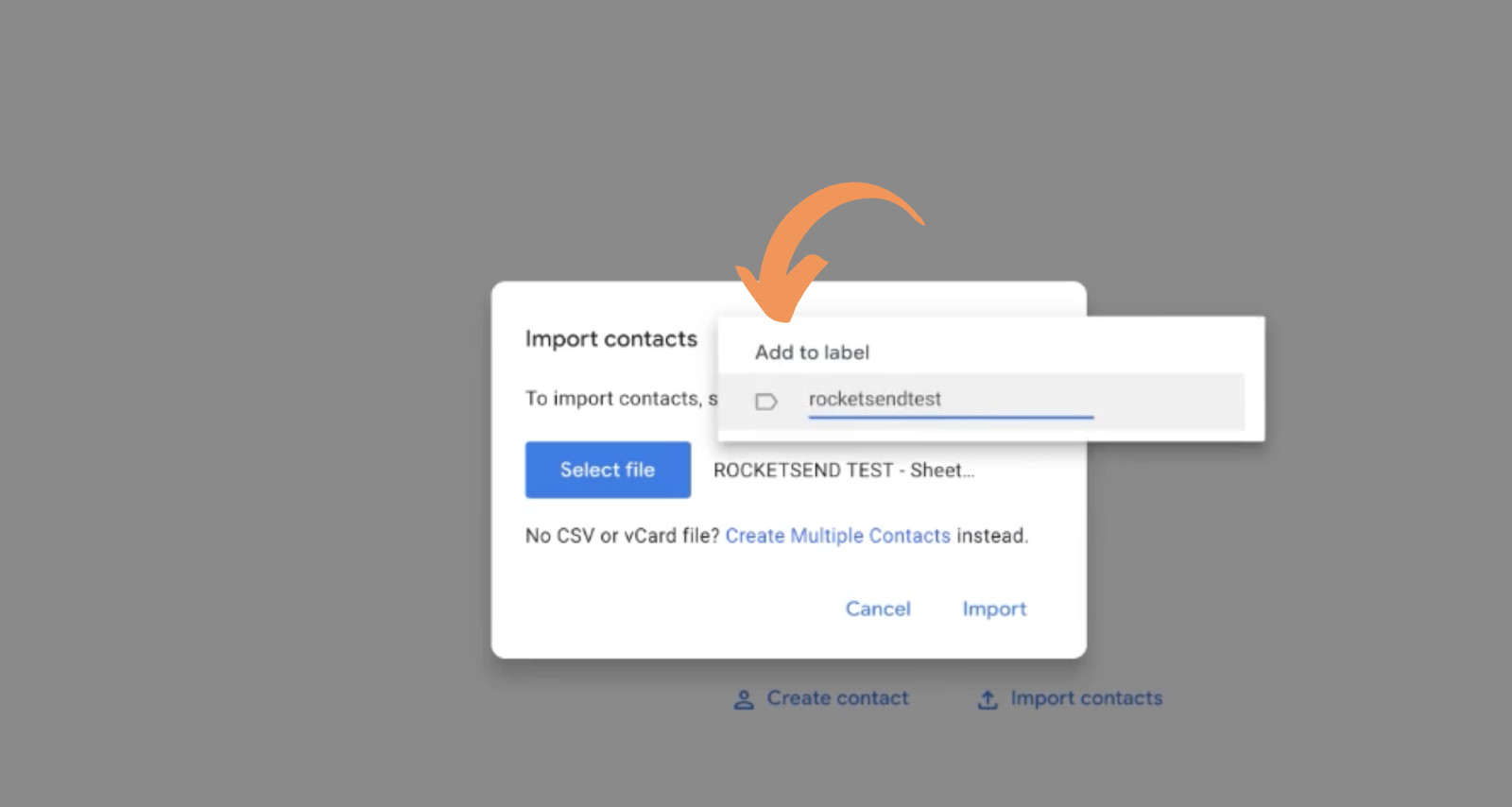
In the dialog, click Select file and choose your CSV. Before importing, create a label (e.g. "Campaign — March 2026"). This makes it easy to delete all these contacts in bulk later if you don't need them permanently.
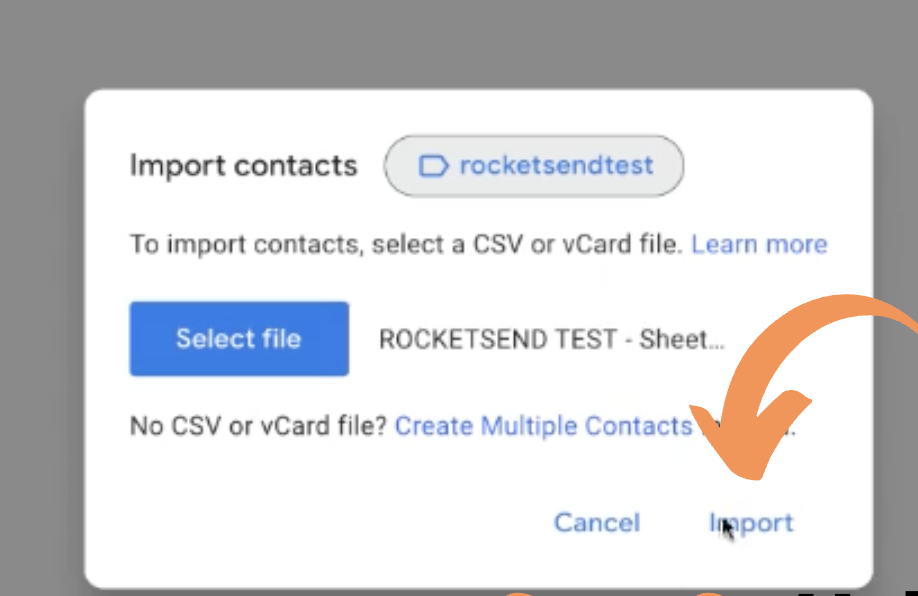
You can upload your entire contact database in one go — you won't need to repeat this process before every send.
Step 3 — Verify the Sync to WhatsApp
For the contacts to appear in WhatsApp, your phone needs to sync with Google Contacts and WhatsApp needs permission to read your contacts.
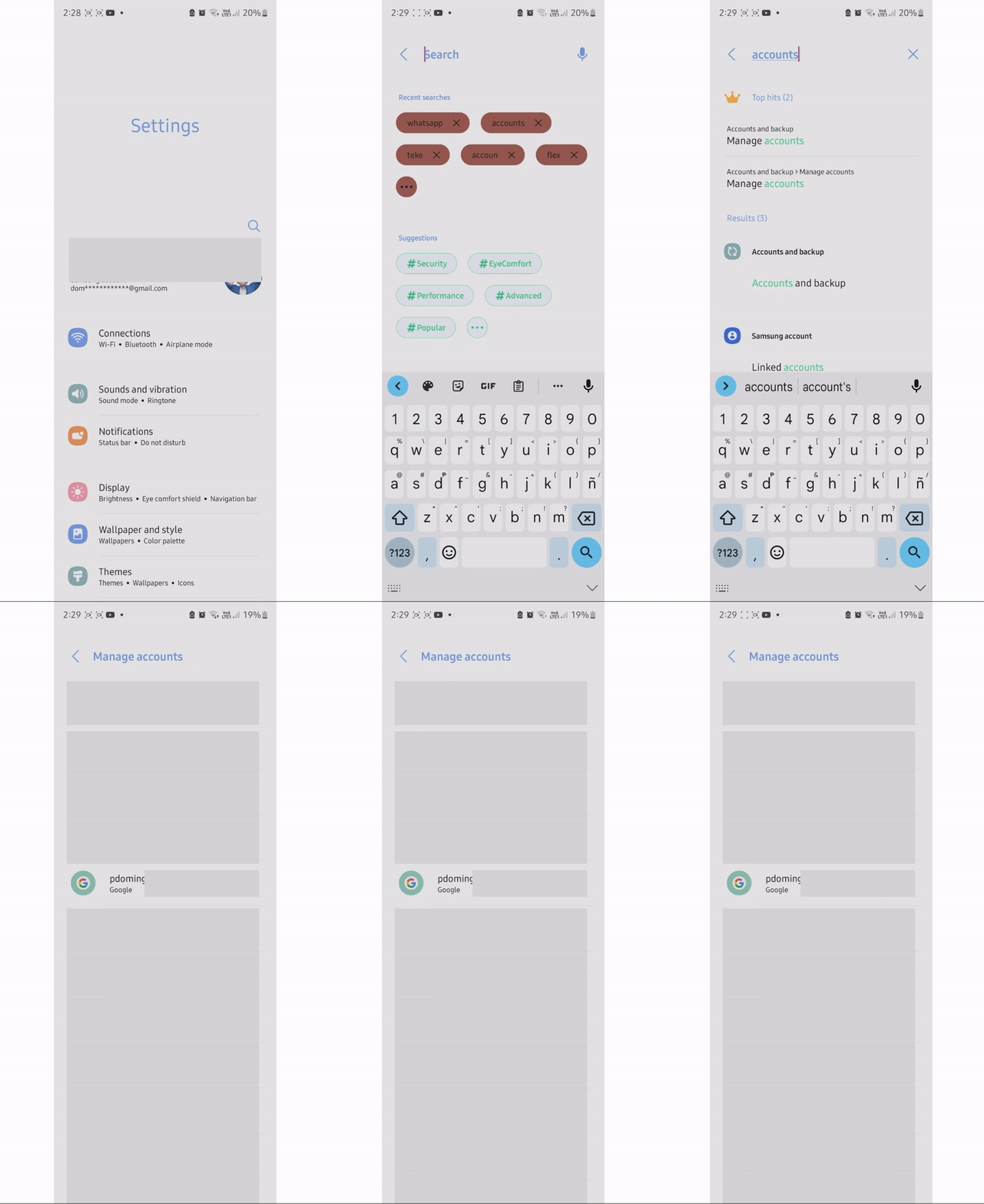
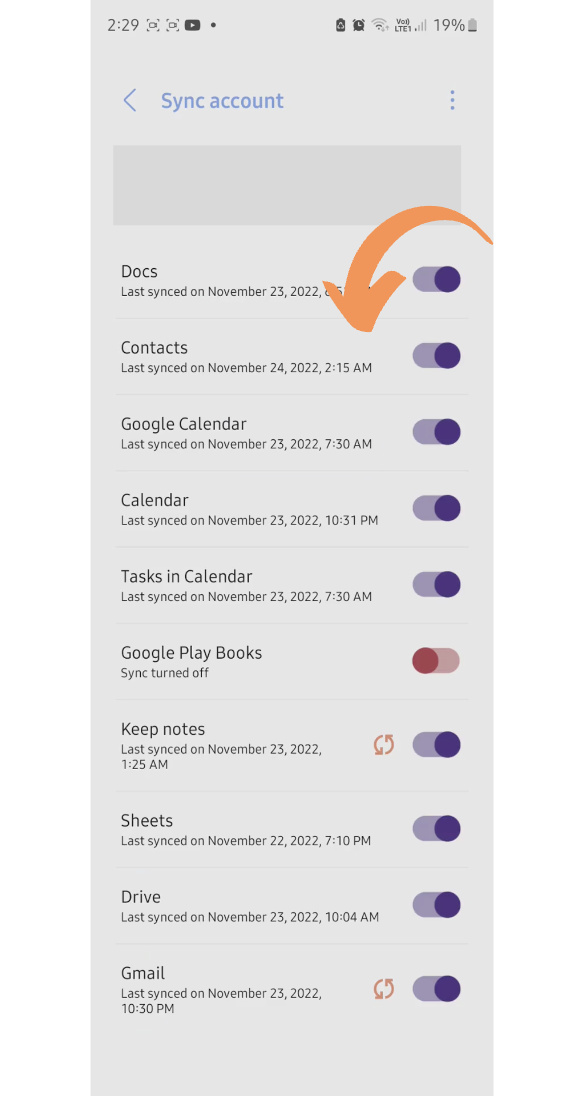
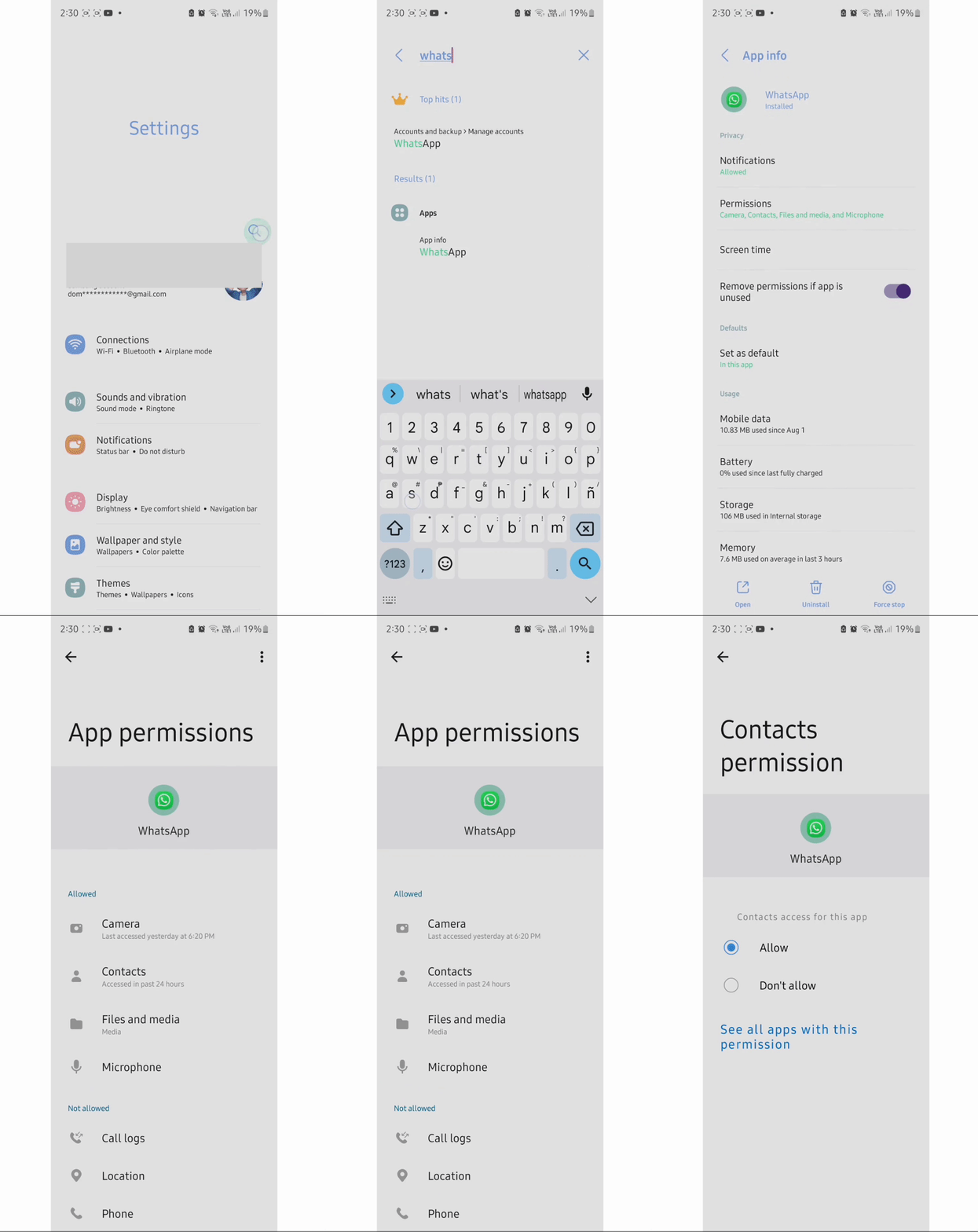
On Android: Go to Settings → Accounts → Manage Accounts, tap your Google account, and confirm that Contacts sync is on. Then go to Settings → Apps → WhatsApp → Permissions and ensure Contacts is set to Allowed.
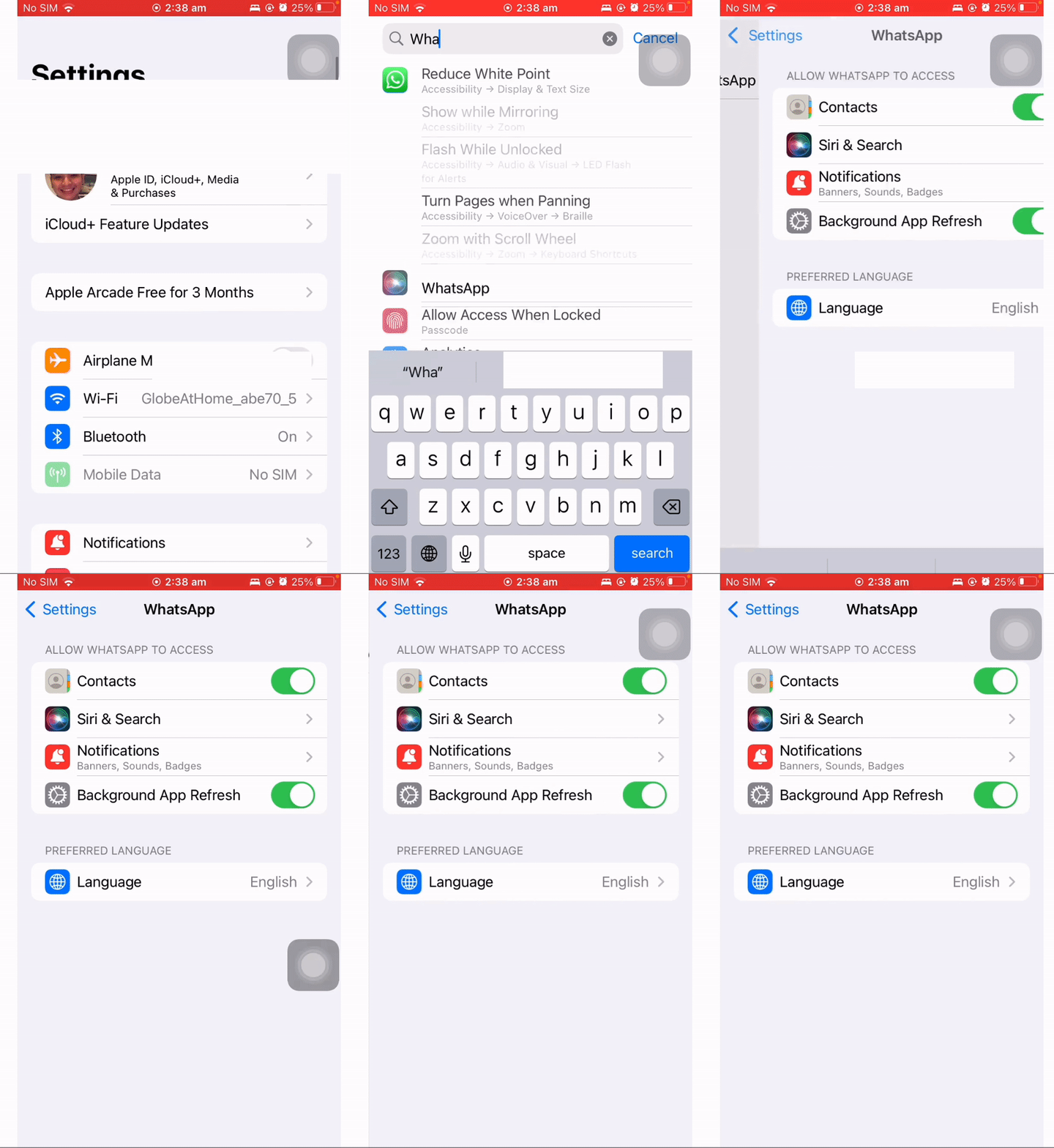
On iOS: Go to Settings → Contacts → Accounts and confirm Google sync is active. Then check Settings → WhatsApp and ensure the Contacts toggle is enabled under "Allow WhatsApp to Access".
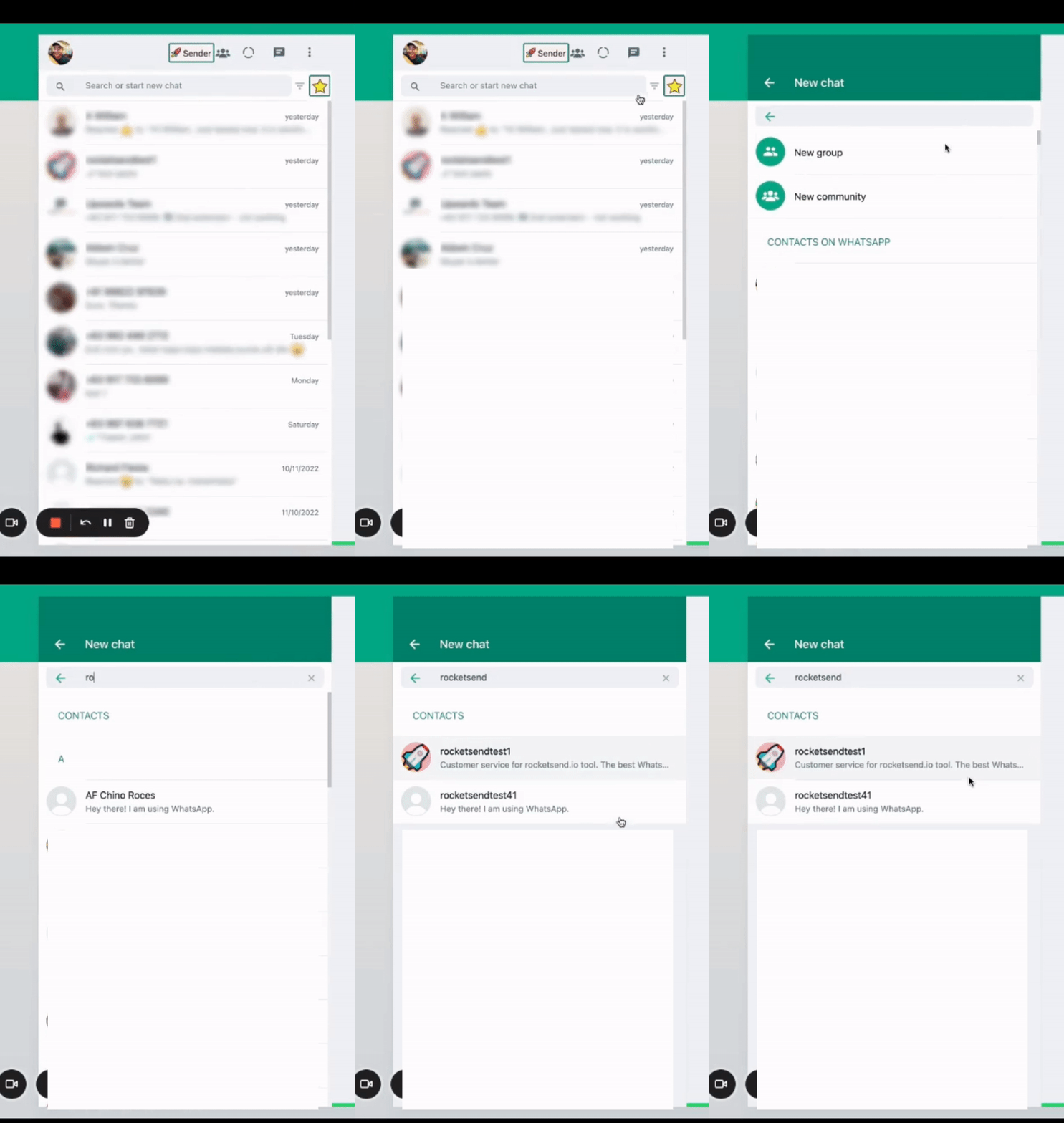
To confirm everything worked, open WhatsApp Web, click New Message, and search for one of the numbers you just imported. Only numbers registered on WhatsApp will appear.
Step 4 — Send Messages with Rocket Sender
With your contacts now synced to WhatsApp, the "Phone Number Shared Via URL Is Invalid" error will no longer appear for those numbers. You're free to send via wa.me links — or use Rocket Sender to send at scale.
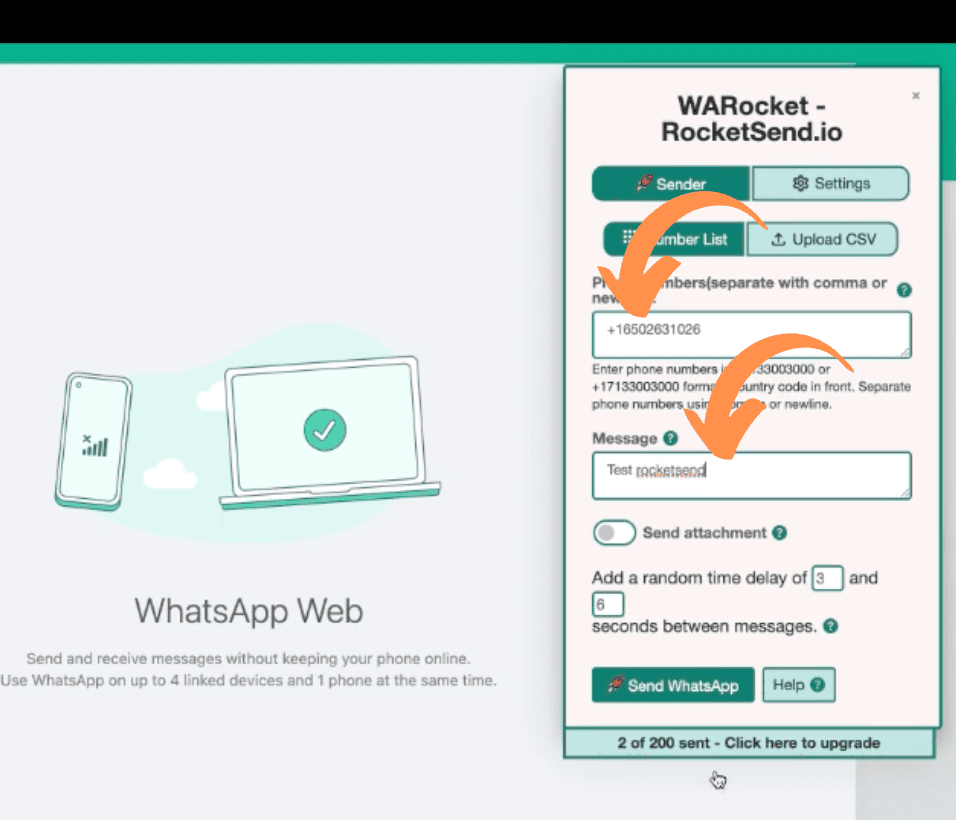
If you don't have Rocket Sender yet, install it free here. Open web.whatsapp.com, click the Sender button, and the panel appears on the right side of the page.

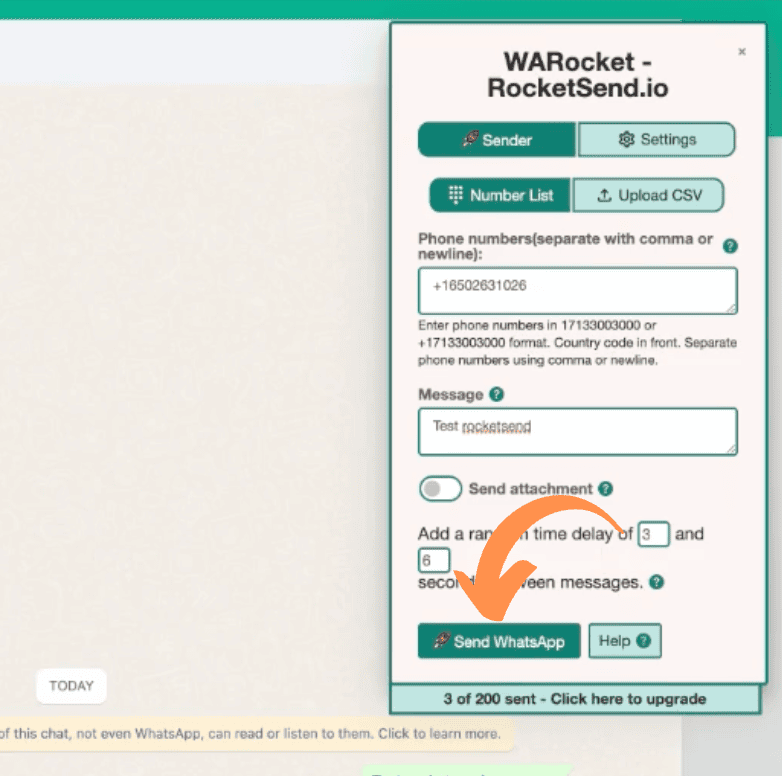
Enter numbers and your message, then click Send WhatsApp. Messages go out through your own account — no API, no external service.
Optional — Delete the Imported Contacts
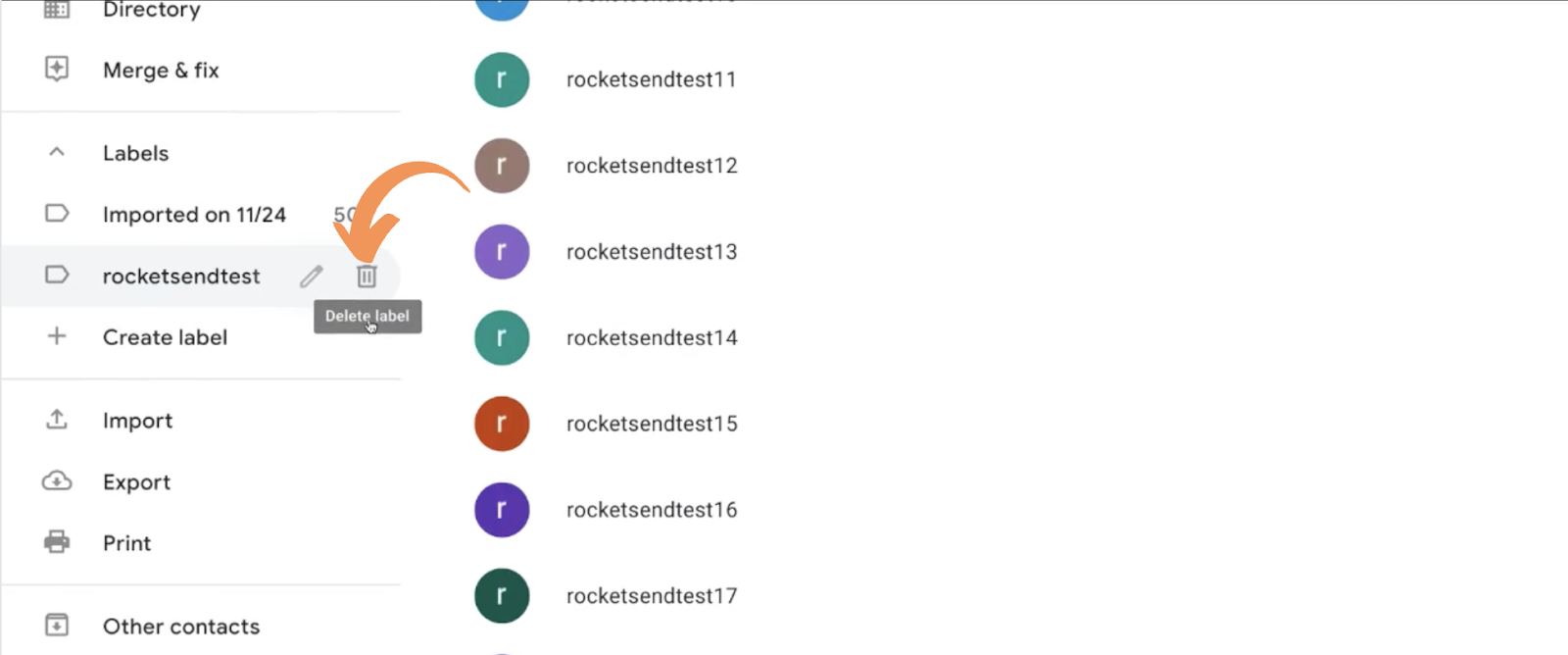
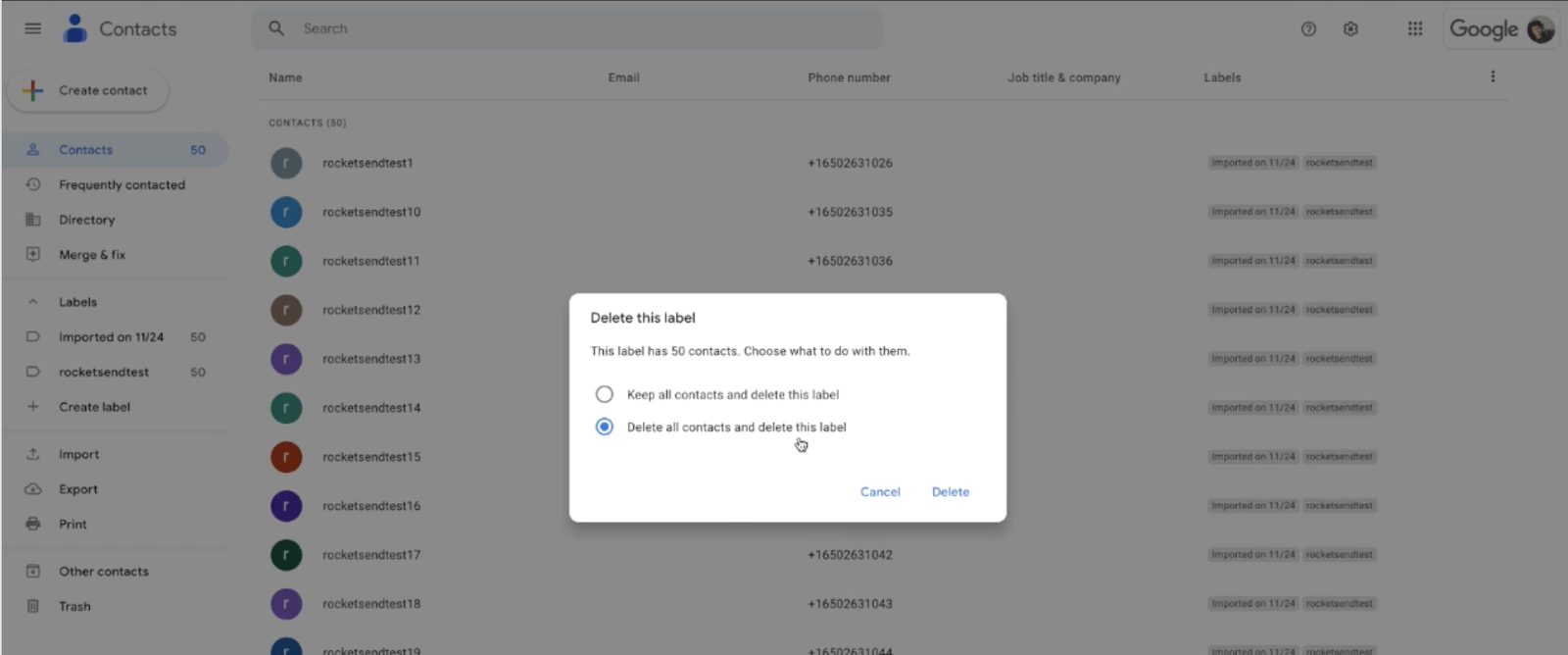
If you created contacts only for this campaign and don't want them saved permanently, head back to contacts.google.com, find the label you created, and click the trash icon to delete all contacts under that label.
And that's the full fix. The error is caused by a WhatsApp restriction, but the Google Contacts sync route sidesteps it completely. Once your numbers are synced, messaging works normally.